
This feature is available on all plans

Render live code examples in languages such as React, Vue, and Angular. Allowing you to see your components and code side by side in multiple languages. The appearance of the editor is customizable, as well as being able to choose whether viewers can see your code and interact with it.
You can add external resources and dependencies needed to render your components. Pro & Enterprise customers can also add private package dependencies.
Add live code preview
1) In the toolbar, click the plus icon and select Code, or type /code
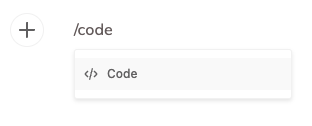
2) Select the language you would like to display
3) Paste your code in and the preview will load your component
Note: Viewers can play with and edit the code, but it won't save or change the code for anyone else viewing the documentation.
Customize appearance
Theming
You can choose between a light theme and a dark theme for the code editor in your styleguide. This is a single toggle that will apply to all code blocks in that styleguide.
To change your theme, this can be done in the theme editor.
Presentation
Use the settings cog located on each code block to set how you would like the block to be shown to your viewers.

You are able to show both the code and preview, or just one or the other.
Add JavaScript and CSS resources

- Copy links to your external JavaScript or CSS resources
- In the Code section in the Styleguide settings, paste your resources in the shared resources section
- Click Add
- These files will then be imported into your Live Code blocks
Import NPM packages
If your components require public NPM packages, you will need to add them as a dependancy in each styleguide that uses them.
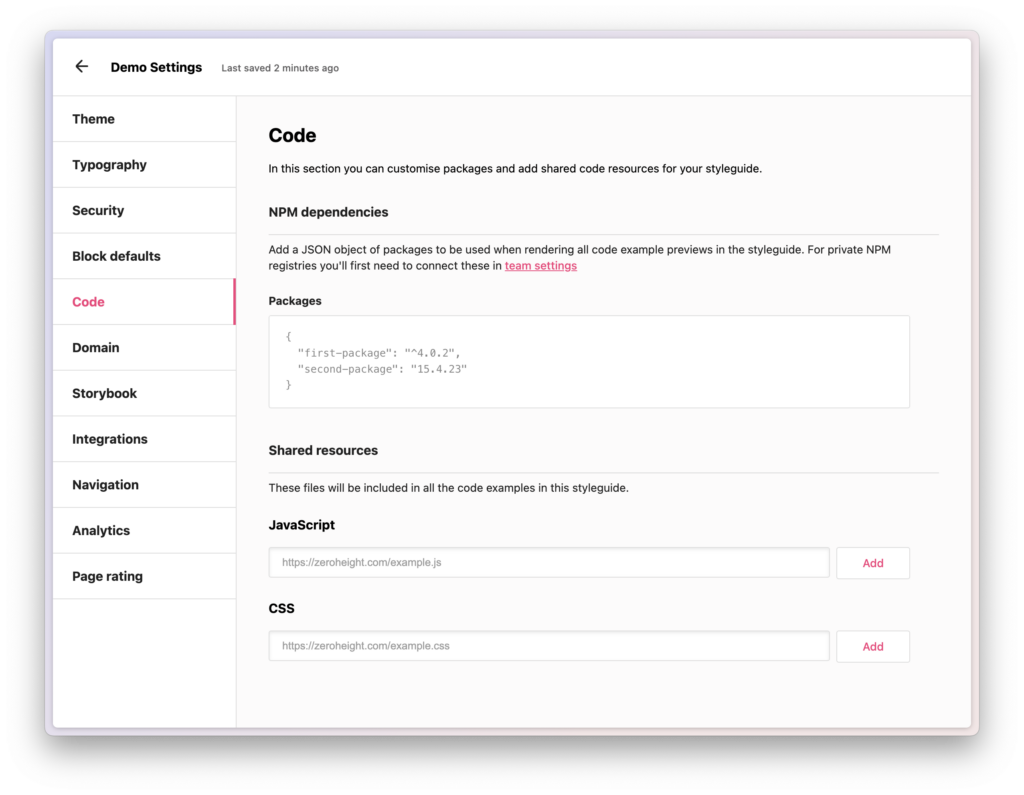
- Copy your NPM package name and version from your registry
- In the Code section in the Styleguide settings, paste your NPM package in the NPM Dependencies box
- Your code will now be able to reference the package in the Live Code block
Configure private NPM registries
You can also use packages that come from private registries. Head over to our help article on that topic to learn more.
FAQs
What should I do if my code won't render?
If you notice errors while trying to request external resources (such as JS files), this may be due to cross-origin resource sharing (CORS) restrictions. Such errors will require you to add appropriate headers to the resource in question.
For example, if you receive: "No 'Access-Control-Allow-Origin' header is present on the requested resource" when trying to load the live code block, you will have to configure your response to include the "Access-Control-Allow-Origin" header in the response, setting it to something like "https://*.codesandbox.io". This will ensure our compiler can access the resource.
If you are still having issues, contact support@zeroheight.com, and we'll help debug your issue.
Which coding languages can I add?
We support:
- Angular
- HTML/CSS/JS (with CSS preprocessors: Sass, SCSS, Less)
- React
- React TypeScript
- Svelte
- Vanilla TypeScript
- Vanilla JavaScript
- Vue
- Vue3
- Vue3 Typescript
Can I render components that are supported by private NPM packages?
Yes, Enterprise customers can add dependencies from private registries. Find out how in our help article
Do I still need to use Storybook if I can preview my React code in zeroheight?
Storybook is helpful as a sandbox and QA tool. While the preview tool may reduce the need to use Storybook, you will still need to manually maintain your code snippets in both the code base and zeroheight.
Can I hide the code from viewers?
Yes. Go to the block settings to see presentation options. By default, zeroheight will show both the code and the preview; however, you can choose to hide either the code or the preview (but not both at the same time).
Legacy code block doesn't work with the new code block?
With the new code block, dependencies need to be added as a shared resource in the 'Styleguide settings > Code > Shared resources' rather than within the block itself such as the use of <script src=...> tags for Javascript files. Please check whether the dependencies have been added correctly and also don't forget to remove these tags from within your code as these are no longer required as they're available in the 'Shared resources'.
The new code block does not fire the DOMContentLoaded event whenever the live preview is loaded. If your Javascript listens for the DOMContentLoaded event to trigger attaching logic to HTML elements, for example by doing document.addEventListener("DOMContentLoaded", function() {...}), you will need to either
- modify your Javascript to run attaching logic immediately if
document.readyState === 'complete' - manually trigger the event by adding the following Javascript to your code block:
window.dispatchEvent(new Event('DOMContentLoaded'));
